











• Home
  • Solutions
      logistics banner

      With the rapid growth of e-commerce, logistics operations face increasing demand for efficiency, accuracy, and visibility. The heavy workload and low automation in traditional logistics result in slow deliveries, high operational costs, and customer dissatisfaction. Paper-based, labor-intensive operations are gradually being replaced by intelligent technologies such as barcoding, RFID, and IoT-enabled devices.

  • About YGF
  • Home
  • Solutions
      logistics banner

      With the rapid growth of e-commerce, logistics operations face increasing demand for efficiency, accuracy, and visibility. The heavy workload and low automation in traditional logistics result in slow deliveries, high operational costs, and customer dissatisfaction. Paper-based, labor-intensive operations are gradually being replaced by intelligent technologies such as barcoding, RFID, and IoT-enabled devices.

  • About YGF

Support

Explore YGF-TECH product documentation: manuals, specification sheets, SDKs, FAQs, how-to videos and more.

Support

Providing advanced artificial intelligence solutions for industrial enterprises

Technical Support

Choose the most convenient option to get a technical

YGF Tech Service & Support Center FAQs

Empowering your enterprise with comprehensive product documentation, developer SDKs, firmware updates, and global RMA services.

01

OEM/ODM & Enterprise Solutions

Customization, branding and volume deployment

2 answers
Q1.1Does YGF provide OEM, ODM, and customized branding services?

Yes. YGF specializes in end-to-end ODM/OEM customization for system integrators (SI), ISVs, and enterprise clients:

  • Hardware Customization: Modular integration of premium scan engines (Zebra, Honeywell, Newland), UHF RFID (Impinj/Phychips modules, 1–25m read range), NFC/HF (13.56MHz), PSAM/SAM slots, biometrics/fingerprint, and custom physical keypad layouts.
  • System & ROM Customization: Custom boot animation, corporate wallpaper, customer APK pre-installation/silent installation, Kiosk/Lockdown mode, and customized Android firmware.
  • Branding & Enclosure: Silk-screen brand logo, laser engraving, customized industrial casing colors, and bespoke packaging.

Contact our Sales Engineering team at [email protected] for project feasibility and quotation.

Q1.2Do you offer volume tier pricing for bulk enterprise deployments?

Yes. We provide competitive tiered pricing, demo sample evaluation programs, and project registration protection for authorized distributors and enterprise rollouts. Please share your target quantity, destination, and project timeline with [email protected] to receive an official commercial proposal.

02

System & Device Operations

Identification, screenshots, reset and GMS activation

5 answers
Q2.1How do I check the Serial Number (SN) or IMEI of a YGF terminal?
  • System Settings: Open Settings → About Phone (or System → About Phone) → Status to view the Serial Number and IMEI.
  • Dialer Shortcut: Launch the Phone app and dial *#06# to display the hardware IMEI and SN on screen.
  • Battery Compartment: Remove the battery cover to check the physical barcode label inside the battery slot.
Q2.2How do I take a screenshot on YGF handheld devices?
  • Physical Key Combination: Press and hold the Power Button and Volume Down (-) simultaneously for 1–2 seconds.
  • Keypad Models: On devices with physical numeric keypads, press Power + Function Key (e.g. FN/F1).
  • Notification Panel: Swipe down from the top edge of the screen and tap the Screenshot tile.
Q2.3How do I perform a standard factory data reset?
  • Navigate to Settings → System → Advanced → Reset Options.
  • Select Erase all data (factory reset).
  • Tap Reset Phone and confirm with Erase Everything.
Warning: Factory reset permanently wipes internal app data, accounts, and downloaded files. Please back up critical data before resetting.
Q2.4How do I execute a hardware Hard Reset / Recovery Mode wipe?
  • Power off the device (or detach and re-insert the battery).
  • Press and hold Power Button + Volume Up (+) (or Left Function Key) together until the YGF boot logo or Android Recovery prompt appears.
  • When “No command” is shown, press Power + Volume Up (+) again to reveal the Android Recovery Menu.
  • Use the Volume - / + buttons to highlight Wipe data / factory reset.
  • Press the Power Button to confirm. Once finished, select Reboot system now.
Q2.5Unable to access Google Play Store or need Google Mobile Services (GMS) activation?

For project batches requiring Google Mobile Services (GMS) certification:

  • Send your device Serial Number to [email protected] to request your authorized TeeKey certificate and SN Writer Tool.
  • Connect the YGF device to a Windows PC using the standard USB data cable.
  • Launch SN Writer Tool on your PC, import the authorized TeeKey, and write it to the terminal.
  • Reboot the device to enable full Google Play Store, Google Maps, and GMS ecosystem services.
03

Barcode Scanning & RFID Setup

Scanner output modes, UHF testing and module controls

3 answers
Q3.1The barcode scanner is not firing or outputting data. How do I configure it?
  • Launch Scanner Utility: Open the built-in Scanner App / AppCenter on the home screen.
  • Check Output Mode: Go to Scan Settings → Send Mode / Output Mode. Ensure it is set to Focus + Broadcast (or Keyboard Emulation / Direct Insertion).
  • Key Mapping: Check Key Settings to confirm that the physical side SCAN buttons and pistol trigger are mapped correctly.
  • Symbology Enable: Verify that your target barcode format (e.g. Code 128, QR Code, DataMatrix, PDF417) is toggled ON under Symbologies.
  • Prefix/Suffix Check: Ensure no conflicting Enter/Tab suffix is disrupting your app input field.
Q3.2How do I test and demonstrate UHF RFID reading performance?
  • Launch AppCenter and select UHF Demo (or RFID Assistant).
  • In Settings, set the appropriate working frequency band (e.g. US 902–928MHz, EU 865–868MHz, or CN 920–925MHz) and adjust the RF output power (10dBm to 30dBm / 33dBm max).
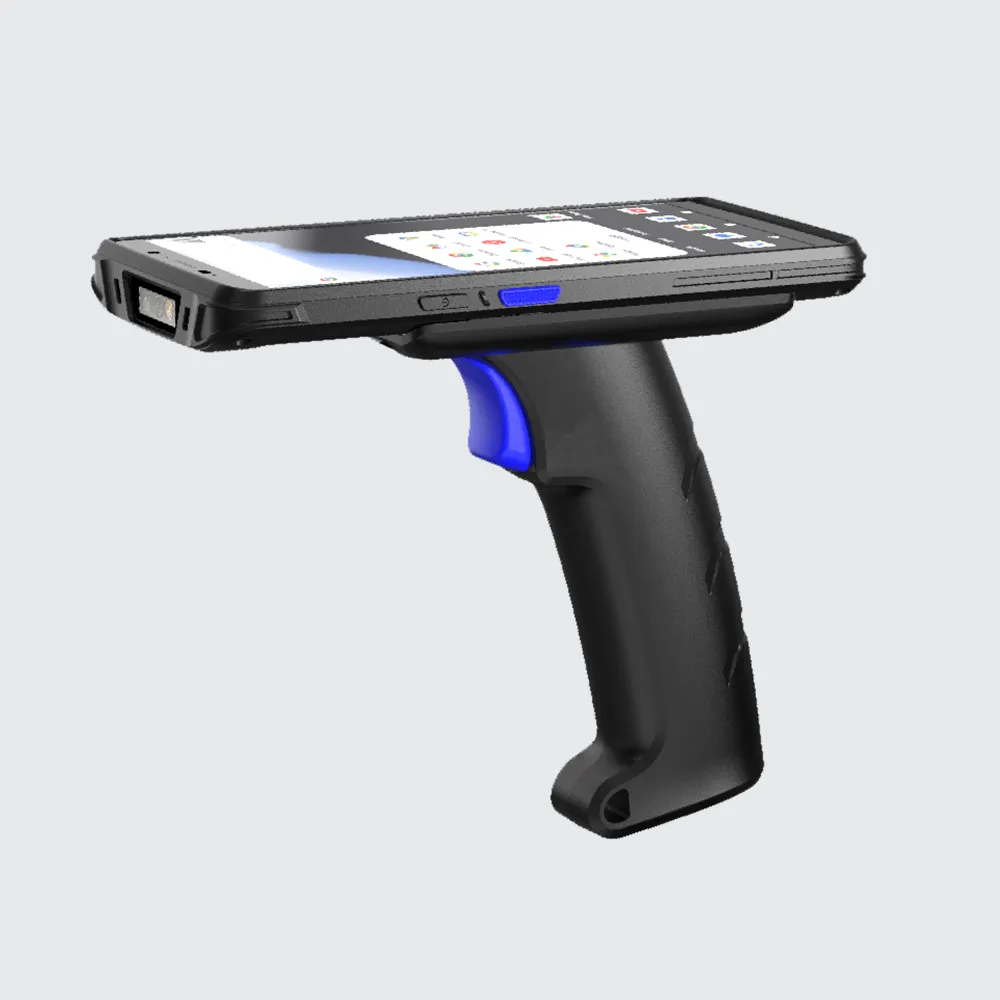
  • Switch to the Inventory tab, orient the front antenna toward the RFID tags, and pull the pistol trigger.
  • The application will display real-time reading speed (tags/second), total unique count, and detailed EPC data.
Q3.3How do I enable, disable, or hide specific hardware modules in AppCenter?
  • Open AppCenter.
  • Tap the Menu button (or the three dots in the upper right corner).
  • Check or uncheck hardware modules (e.g. 2D Barcode, UHF RFID, NFC, Fingerprint, PSAM) to show or hide them from the operational UI.
  • Tap Save to apply settings.
04

Developer Suite & SDK Integration

SDK packages, API references and app integration

2 answers
Q4.1Where can I download YGF developer SDK packages, API references, and sample code?

You can download the latest developer resources directly from our Support portal:

  • Core SDK Package: Android Studio .aar / .jar integration libraries and cross-platform wrappers (Xamarin / Flutter / React Native).
  • Modular Sample Projects: Complete open-source demos including Demo-2D-Scanner_AS.zip, Demo-UHF-RFID_AS.zip, and Demo-Fingerprint_UART.zip.
  • API Documentation: Step-by-step Java/Kotlin integration guides and Broadcast Intent protocol specs.
  • Technical Support: Contact [email protected] for 1-on-1 FAE engineering assistance.
Q4.2How does a third-party enterprise app receive scanned barcode data?

YGF devices support three integration methods:

  • Keyboard Emulation (Zero-Code): Scanned data is directly simulated as keyboard strokes and filled into whichever input box has focus.
  • Android Broadcast Intent (Recommended): The scanner service broadcasts an Intent containing barcode string, symbology, and raw bytes. Your app registers a BroadcastReceiver to handle background captures without UI interference.
  • Direct SDK API: Call YGF Scanner APIs directly for hardware-level trigger interception, lighting control, and custom barcode decoding parameters.
05

Hardware & Network Troubleshooting

Power, charging, SIM, cellular and Wi-Fi diagnostics

4 answers
Q5.1What should I do if the YGF terminal fails to power on or charge?
  • Battery & Contacts: Detach the battery. Inspect the gold-plated pins for debris, oxidation, or bent pins. Clean gently with an alcohol pad and reinstall firmly. Swap with another charged battery to test.
  • Direct Adapter Charging: Use the original 5V/9V power adapter and cable. Plug directly into the wall outlet and charge for at least 30 minutes. Check if the top LED turns solid RED (Charging) or GREEN (Fully Charged).
  • Charging Cradle: If available, place the terminal in a multi-slot charging cradle to bypass the Type-C port.
  • PC Communication Test: Connect the device to a PC via USB. Check if Windows Device Manager detects Qualcomm/MTK USB interfaces. If detected, contact support for firmware reflashing.
  • RMA Return: If the unit remains completely unresponsive, contact [email protected] to initiate an RMA repair ticket.
Q5.2How do I troubleshoot SIM card detection failure or no cellular data?
  • Band Verification: Confirm that your local carrier 4G/5G bands match the supported frequency bands on the YGF product datasheet.
  • Physical Check: Clean the SIM chip with an alcohol wipe to remove surface oxidation. Ensure the SIM card is seated in the correct direction (Nano-SIM).
  • APN Settings: Go to Settings → Network & internet → Mobile network → Advanced → Access Point Names (APN). Verify or manually add your carrier APN parameters.
  • Hardware Slot Inspection: Inspect whether the SIM slot pin is deformed or damaged. Contact support if hardware maintenance is required.
Q5.3How do I diagnose Wi-Fi connectivity and network reachability issues?
  • PING Tool Diagnostic: Open AppCenter, launch the built-in PING Tool, input your gateway IP (e.g. 192.168.1.1) or backend server address to test packet latency and drop rates.
  • Band Testing: Switch between 2.4GHz and 5GHz Wi-Fi bands. In enterprise warehouse environments, ensure seamless fast-roaming protocols (802.11k/v/r) are enabled on your Access Points (APs).
  • Static IP Configuration: If DHCP IP allocation times out, configure a Static IP address manually under Wi-Fi Advanced Settings.
Q5.4How often are Android OS and firmware updates released for YGF devices, and how do I upgrade?
  • Quarterly Update Cadence: YGF maintains an active software lifecycle with OS firmware and security updates released approximately every 3 months (quarterly updates) to ensure optimal hardware performance, updated Android security patches, and scan/RFID engine driver enhancements.
06

Warranty & Global RMA Service

Coverage, service hubs and cross-border returns

3 answers
Q6.1What warranty coverage does YGF provide for enterprise customers?
  • 12-Month Standard Hardware Warranty: Full coverage for manufacturing defects on motherboards, displays, scan engines, and RFID modules. (Optional extended service agreements available up to 36 months.)
  • 30-Day Risk-Free Return/Exchange: For qualified unused units in original condition.
  • Lifelong Technical & FAE Support: Free firmware updates, OS patches, and developer SDK assistance throughout the product lifecycle.
  • 24-Hour SLA Response: Dedicated technical support response within 24 business hours.
Q6.2Where are YGF regional after-sales and RMA service centers located?

To eliminate international customs delays and provide fast turnaround, YGF operates certified local service centers in North America and Europe:

  • North America Service Hub: Xiaomi-ZGKJ, 7540 Kenwood Pl, Rancho Cucamonga, CA 91739, USA
  • European Union Service Hub: Chunxiao Duan, Goethestrasse 31, 64546 Mörfelden-Walldorf, Germany
  • Global HQ & Manufacturing Hub: YGF Technology Park, Shenzhen / Dongguan, China
Always register with [email protected] to obtain an official RMA number before sending any package.
Q6.3What are the crucial packaging and customs clearance rules for RMA return shipments?
  • Customs Declaration: When shipping cross-border for RMA repair, declare cargo as “Faulty Barcode Terminal for Repair Only - No Commercial Value”. Declare unit value as $20–$25 USD per piece to avoid customs holding and prohibitive import tariffs.
  • Battery Regulation: Do NOT send back functional batteries or chargers unless the battery itself is defective. Lithium batteries (UN3481) cause severe air freight and customs delays.
  • Package Quantity: Pack no more than 3 units per parcel for seamless customs clearance.
  • Accompanying Documents: Print and enclose 3 copies of the YGF RMA Form and Non-Commercial Invoice inside and outside the box. Prefer DHL or FedEx.
07

Payments & Global Shipping

Free shipping regions, payment methods and credit terms

2 answers
Q7.1Which countries qualify for complimentary Free Shipping?

We offer Free Express Shipping for direct orders delivered to:

  • North America: United States
  • Europe: Germany, France, United Kingdom, Italy, Spain, Netherlands, Belgium, Austria
  • Asia-Pacific: Singapore

For other destinations, freight is calculated in real time during checkout based on gross weight and courier tariffs (DHL/FedEx/UPS).

Q7.2What payment options and business credit terms are available?
  • Online & Sample Orders: Credit/Debit Cards (Visa, MasterCard, AMEX, Discover), PayPal, Apple Pay, Google Pay, Meta Pay.
  • Bulk Enterprise Orders: Direct Corporate Bank Wire Transfer (T/T).
  • Net Terms Policy: Currently, we operate on 100% upfront prepayment for standard online orders. For long-term contracted enterprise partners with project authorization, customized credit terms may be reviewed on a case-by-case basis.

repair & service

Product Warranty

Look up warranty and relate
information

Request a Repair

Order a repair for your ygf
product

Find a Repair Center

Access a repair centre by
region

Check a Repair

Check the status of a repair that's
already started

Contact Us

Whether you have a problem with our products, services or other things, you can ask us, our team is waiting for you!

WhatsApp

+86 186 8150 3689

Address

I7th Floor, Bick Technology Building, No. 9Keyan Road, Nanshan District, Shenzhen City

Shopping Basket

Unlock SDK, API & Developer Resources